In an earlier post I explained how to rip a DVD-Audio disc using foobar2000 and a couple foobar plug-ins. In this post I'll explain a slightly easier method using a program called DVD Audio Extractor.
DVD Audio Extractor is an application that I originally used to extract the audio tracks from a video DVD. Also in an earlier post, I explained how to extract the audio from a Diana Krall DVD. You use the same technique to get the audio from a DVD-Audio disc. The application works like a wizard and steps you through the process.
I'm working with DVD Audio Extractor version 6.3.0, which is the most current version at this time (May/2012). Here's what the first screen looks like:
Before I launched DVD Audio Extractor, I already had the DVD disc in my
drive and by default, it displayed the contents of the AUDIO_TS folder. You
can use the drop-down navigation tools to get to the VIDEO_TS folder. The volume label is shown in the album field. In this case, it says BARENAKEDEVERYTHING, which is the volume label for my 'Barenaked Ladies - Everything to Everyone' disc. The DVD was part of a CD/DVD combo pack I bought many years ago. The DVD disc also includes a DVD Video with in-studio video clips of 11 acoustic songs.
First, let me explain the program's layout. It should be pretty self explanatory, so I'll just provide a simple overview. Below the source selection drop-down is a row for entering the metadata, which includes the artist, album, year and genre. Below that, there are 2 windows. The one on the left is a list of titles included in the disc. On the right are all the chapters in that title. When you pick on one of the titles, the message box below the title window will show the audio format usually with sample rate, bit depth and the number of channels. With this disc, there are 5 titles, 2 of these have 14 chapters, 2 have 1 chapter and 1 title has 11 chapters. I can see that the titles with 14 chapters (Title1 and Title2), all of their chapter lengths match, so they're probably the same songs. The difference is Title1 has 6 channel tracks (5.1 surround) and Title2 is in stereo. It looks like Title3 and Title4 are the 5.1 channel and stereo versions of a bonus track and Title5 is the same 11 acoustic songs from their studio session that are offered in the VIDEO_TS folder. I'm going to extract the surround tracks from Title1 and Title3. These are all 24-bit, 96 KHz, 6 channel tracks.
First, I'll need to enter the metadata. I tried picking the pencil icon on the far right side of the metadata toolbar to see if I could automatically download the information for artist, album and track names, but it returned "no match found" so unfortunately, I'll have to enter this in manually. So using the info on the back of the jewel box, this is what it looks like after editing.
After entering the artist, album, year, genre and track names, I'm ready to go to the next step, so I picked the 'Next >' button at the bottom of the app's window. The program displays a message saying "Scanning chapters, please wait..." Hmmm, this is taking quite a long time and my computer has a Intel Core i3 540 (3 GHz quad core) and 4 GB RAM running Windows 7 Ultimate 64-bit. This step didn't take very long with a video DVD, but it is pretty slow with this disc.
The second screen includes the output format and codec options. For this disc, I'm going to convert (transcode) the MLP tracks to FLAC. Since both are lossless, they will sound identical and FLAC has the added advantage of being supported by virtually every player and it supports tagging, which I'm not sure is possible with MLP. Since I want to convert from MLP to FLAC without any changes, I set the sample rate to "same as input", the channels to "all 6 channels" and bits per sample to "24 bits", which matches the bit depth of the original MLP.
Picking the 'Next >' button again will take us to the next screen, which is used to specify the location for your files. It can automatically create folders using the metadata fields I completed in the first screen. I'm going to use the metadata from 'Artist' and 'Album' to create an artist folder and an album subfolder. Each track will be placed in the album folder and the names will have the track number followed by the track name. With DVD Audio Extractor the track number comes from the INDEX data and the track name is the same as the CHAPTER name. This information was included in their help file, which you can see if you pick the 'HELP' button in the lower left corner. Since I am not making any changes, other than the basic conversion from MLP to FLAC, I will not do any normalization.
Picking 'Next>' takes us to our final step, which shows the progress of extracting and encoding. I picked the 'Start' button to make it run. This screen shows a snapshot of what it looks like while in the process of extracting and encoding. Upon completion, DVD Audio Extractor will pop-up a message to tell you the encoding finished with a link to the folder where your extracted tracks are located. That's it!
In conclusion, DVD Audio Extractor works and it's an easier method than the process I explained for extracting DVD-Audio tracks using foobar2000. However, I think foobar2000, once set up with the correct plug-ins, is pretty easy and is a lot faster. I waited at least 15 minutes between the first and second steps with DVD Audio Extractor.
Showing posts with label dvd-a. Show all posts
Thursday, May 17, 2012
Wednesday, January 20, 2010
DVD-A Registry
Now that I have a reason to purchase DVD-Audio discs, I've been searching for online sources. It looks like the DVD-A Registry is a place where you can see a list of everything that has been released on DVD-A. It also looks like they include a couple other formats like Blu-ray. There are some other formats I'm not familiar with like MVI and HDAD. If anyone has info on these please feel free to contact me or leave a comment.
Update: I just got some more info from Feisal, the creator/owner of the DVD-A Registry. Here's his response:
"MVI is dead & gone - it's a CD+DVD with hi-rez stereo and possibly a 5.1 DD track. There were only about 15 MVI discs released ever so its really not that important. HDAD and DAD were coined by Classic Records. DAD was a DVD-video format disc with 24/96 stereo audio only, and HDAD was a DVD-V on one side and a DVD-A on the other side (with 24/192 stereo MLP)."
Sunday, January 17, 2010
Free DVD-A Album
In my last post I explained how you can play and rip a DVD-A with your computer. Some of you may not have a DVD-A, so I found one you can use to try this out.
Check out Diatonis - Dark Edges, an ambient style electronica album. The download link is for a DVD-A ISO image of their 24-bit 96 kHz 5.1 surround sound recording. Diatonis also sells DVD ISO images (both DVD-Video and DVD-Audio) through tradebit for only US$6.00 per album.
After you download the ISO, you can use foobar2000 with the dvd-audio plugin described in my last post to both play and rip the tracks. The method described below works on both physical discs and ISO images. If you have any questions, just post a comment below.
Enjoy!!
Thursday, January 14, 2010
Playing and Ripping DVD-Audio With Your PC
DVD-Audio, or DVD-A, was one of the audio formats that was suppose to replace CDs. The other was SACD. Both of these formats are a big improvement in audio quality. Not that redbook CD is a bad format. It actually is quite good when done right. DVD-A supports higher resolution and more channels than CD, which as you know only gives you 2 channels for stereo playback. DVD-A can have up to 6 channels for surround sound. The DVD-A spec supports a bit depth of up to 24-bits and a sampling rate of up to 192 KHz for 2 channels and 96 KHz for more than 2 up to 6 channels. As you also probably know, DVD-Video, or DVD-V, also supports up to 6 channels of audio. The big difference between DVD-A and DVD-V for audio is the multichannel audio in a DVD-V is compressed using lossy compression methods like Dolby Digital (AC3) or DTS. The multichannel audio in a DVD-A uses a lossless compression method called Meridian Lossless Packing. DVD-A can also use uncompressed LPCM, but it can only handle a total bit rate of 9.6 Megabits/second. So high bit rate, high sampling rate multichannel files need to be compressed. Anyhow, MLP's lossless compression sounds exactly like the uncompressed LPCM, so there's no disadvantage to it. The MLPs will sound better than the same music compressed with Dolby Digital or DTS, so therefore it is a better choice for audiophile recordings.
I think DVD-A and SACD failed to become the next big mass market format for several reasons. The fact that they were competing formats didn't help and probably created some confusion. New hardware requirements probably kept some people from jumping in before knowing what format to buy, especially since they didn't want to make a mistake and buy equipment that may become obsolete (like Beta VCRs or HD-DVD players more recently). Another factor that may have impeded the growth in popularity for DVD-A might be the copy protection that prevented people from copying the music to their computers. At the time the DVD-A spec was completed in 1999, MP3s were becoming very popular and file sharing with Napster was increasing very rapidly. I think the last thing the record labels wanted was another format that was easy to copy. Consumers on the other hand wanted to copy freely. I'm not sure if this was a big deal because the size of a high resolution multichannel file is huge and wasn't very practical for filesharing.
The fact that there's not much music (or at least really popular) music on DVD-A doesn't help either. The big record labels weren't really releasing a lot of stuff on DVD-A. However there is some stuff from a few of the labels like Universal Music, EMI, and Warner Bros. Records, along with a few smaller audiophile labels like AIX Records and DTS Entertainment. Some of the DVD-A releases are older standard definition recordings that have been upsampled and remixed into 5.1 surround sound. I would assume a lot of the newer released music is not upsampled. Originally DVD-As were pretty expensive, but now you can find them for nearly the same price as CDs.
To many people surround sound is just a weird gimmick. Originally, it seemed the audio engineers didn't really know how to deal with it. Some mixed the audio so the listener was in the center of a room of performers and others tried to create a more traditional experience with the music coming from the front speakers and ambient sounds from the rear. This was suppose to sound more like a live performance. As far as I'm concerned, both of them work fine when mixed by an engineer that knows what he/she is doing. I guess it just depends on what effect the musicians want us to hear. I think surround sound gives a more accurate sound stage than can be achieved with just 2 loudspeakers. So I don't think it's a gimmick. I'm sure there's the possibility of someone mixing a surround recording that may just be annoying, but that was the case with some early stereo recordings. If you are really interested in the advantages of multichannel surround, you should check out ambisonics.net.
Enough of the background info... I have a couple DVD-A discs. Actually, I bought CDs that also included a DVD with the overall bundle. The DVD-Video disc portion included some in-studio videos and the DVD-Audio portion included the album mastered in high resolution 5.1 surround. Up until recently I haven't been able to play the DVD-A portion. First, I don't own a DVD-A player. Second, I don't own a Creative Labs soundcard, which was the only product that was bundled with a player that could play DVD-A discs. Now I can play the DVD-A discs on my computer without the Creative Labs soundcard using our prototype technology. However, the method I use will probably work with a lot of hardware. So here's how I did it:
The software application I used is foobar2000. You can download the current version here, which is version 1.0 as of 1/9/2010. Like a lot of open source projects, foobar2000 has been a fractional number release or in beta for a long time. Foobar2000 is an excellent audio player and fairly popular with people that want the best sound quality from their PC. However, it's not the prettiest or most user-friendly application and doesn't have some of the advanced capabilities of a few commercial players like J.River's Media Center. JRMC can't do many things that you can do with foobar2000. That's why I have both. When you install foobar2000, by default it will locate its files in your 'Program Files' folder. I run Win7 64-bit, so foobar2000 is located in my 'Program Files (x86)' folder.
Foobar2000 by itself won't play the DVD-A, for this you need the DVD-Audio Decoder and Watermark Detector input plugin for foobar2000. Download foo_input_dvda-0.3.4.zip (or a newer version if it is available when you read this) and unzip to your system. Inside the zip file (and now the unzipped folder) you should find a file named 'foo_input_dvda.dll'. Copy or move this file to the foobar2000 components folder. This is a folder located inside the '\Program Files\foobar2000\' folder called 'components'.
Before you run foobar2000 and try playing a DVD-A, make sure you aren't running the CSS protection from DVD-Videos, like AnyDVD or AnyDVD HD. These programs ignore DVD-Audio CPPM protection, but somehow confuse the drive into behaving like protection is missing. I'm not sure exactly why this is, but just understand that you'll need to disable programs like AnyDVD before this will work. Also realize that if you like to copy DVD disc images to your computer or server using AnyDVD, it won't work with DVD-A discs. They'll copy okay, but AnyDVD doesn't remove the CPPM protection and the resulting ISO disc image won't play. You need a program like DVDFab, which can handle DVD-A. For this example we aren't going to copy the ISO disc image, so DVDFab isn't needed. Just remember that you still need to disable AnyDVD.
Go ahead and start foobar2000. I don't remember exactly what happens the first time you run it, but at this time just accept the defaults. For the user interface settings, I think I settled on 'Album List + Properties (tabbed)' for the main layout, with colors set to 'Forum' and the default playlist layout.
Next, insert your DVD-A into your DVD drive and wait a few moments for your system to read the disc. Then in foobar2000, use the 'File->Open' command to select your DVD-A file. You'll need to navigate to the disc's 'AUDIO_TS' folder. It should look something like this:
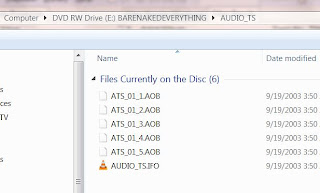
As you can see there's a bunch of files with the extension AOB and one with IFO. It's hard to tell what tracks are included in each AOB, so I just chose the IFO file and it brings up everything.
In the example above, each track on the DVD-A is listed. Some are six channel and some are 2 channel. The track title shows the number of channels, the bit depth and sample rate. In this case 'Lf-Rf-Ls-Rs 24/96000 + C-LFE 24/96000' means it includes the left-front channel, the right-front channel, the left-surround channel, the right-surround channel at 24-bit and 96 KHZ plus the center and LFE (low frequency effects or subwoofer) channel.
When foobar2000 opens a file, it will immediately start playing the first track. Which it did in my case. Now you are playing the DVD's MLP files with your computer without any downsampling or conversions. As you can see, it doesn't use a database lookup service like freedb to provide the metadata tags for artist name, album, track name, etc. So you will have to enter this information manually. You can go ahead and edit all the metadata or track info to display the correct tags and the program will save the data and display it the next time you open and play your DVD-A. A good source for album info is allmusic.com. They include lots of info you can't find in the CD or DVD's jewel case. After you've edited the track info, it's automatically saved in a dvda_metabase subfolder in *.xml files. This folder is located in 'C:\Users\your-user-name\Application Data\foobar2000' (for Vista\Windows 7) or 'C:\Documents and Settings\your-user-name\Application Data\foobar2000' (for Windows XP) and the author of the plugin would like you to share it. This way other people with the same DVD-A won't have to manually input track info. All you have to do is send the new version of your .xml file (you can probably identify it by the time stamp) and send it to maxim.anisiutkin@gmail.com. In case somebody has already entered the data for your DVD-A and you'd like to take advantage of this shared info, you can download the latest dvda_metabase_XXXX.XX.XX.zip file from http://dvdadecoder.sourceforge.net site. Just unzip the .xml files and move them into your dvda_metabase folder.
Now that you can play your high resolution, multichannel tracks from your DVD-A with your PC, you might be interested in some adjustments you can make to take full advantage of your audio system. Many surround sound systems may have a combination of satellite speakers, full-range speakers and subwoofers. My surround system is made up of 4 Era D5 satellites, 1 ERA D5 LCR and an Era Sub10 subwoofer. The D5s have a pretty good frequency range for bookshelf sized speakers, but they still need a little help below 60 Hz. My big 3-way towers reproduce the bass much better. With bass management software you can redirect audio below a specified frequency to the subwoofer channel. This will substitute the bass missing from the satellites and redirect the bass to the sub. Since low frequencies are non-directional, it should sound just as good as if you had full range speakers. This also depends on the quality of your sub. In my case, the Era Sub10 subwoofer is very good. Some audio drivers may include some bass management features. Microsoft introduced this capability with Vista, but your device has to support their in-box class drivers which take advantage of the SysFX DSP features. If you don't use in-box class drivers and your audio drivers don't include any bass management capabilities, you may want to download the Channel Mixer plugin for foobar2000. The author of the Channel Mixer plugin also created the Matrix Mixer, which might eventually provide more flexibility.
Since I have a big media server, which I use to store all my ripped music and videos, I prefer to do the same with the tracks from my DVD-As. I don't think it is possible to save the tracks as individual MLP files. So I'd like to rip the MLP tracks into individual multichannel FLAC (free lossless audio codec) files. Since FLAC is also lossless, these will be virtually identical to the MLP and almost every player supports FLAC. Converting to FLAC is very easy with the DVD-Audio Decoder plugin and a standard converter component that ships with foobar2000. The converter component is used to convert (or transcode) from one audio format to another. Even though foobar2000 natively supports FLAC, you will need the FLAC command line tool for this to work with the foobar2000 converter. I just downloaded the latest 'exe' that was available and ran the installation routine. All you really need are the core tools, but it won't hurt to include the FLAC Frontend and FLAC Tester. I did not include the source code for my installation. By default, it will create a subfolder in your 'Program Files' folder and install all the files you need. Now you should be ready to rip the DVD-A MLP tracks into FLAC files. Here's what you do:
In foobar2000, select all the tracks you want to convert to FLAC. In my case, I'm only converting the multichannel tracks. As you can see, I already edited the track info for my album.
Move your mouse over any of the highlighted tracks and right click. From the menu pick Convert. This will activate the Converter Setup:
In the setup dialog set the output format to FLAC. You can adjust the FLAC level by clicking on the '...' button. The larger the level, the tighter the lossless compression resulting in a smaller file. This also takes longer to generate because of the additional calculations. I just used the default level 5. For now I'm just going to rip these tracks to a folder on my Desktop. I'll move them to my media server later. In the 'Output files' section I selected 'Convert each track to an individual file' and created a naming format of '%track%-%title%'. The preview box on the right shows how each file will be named. I'm going to accept the defaults for everything else and pick 'OK' to start ripping.
The first time you do this, the converter will ask for the location of FLAC command line encoder. Navigate to where you just installed the FLAC stuff (in my case it is 'C:\Program Files (x86)\FLAC') and select the flac.exe file and pick 'Open'.
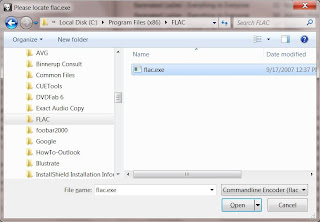
Now it should start converting the MLP tracks into FLAC files.
That's it!
I think DVD-A and SACD failed to become the next big mass market format for several reasons. The fact that they were competing formats didn't help and probably created some confusion. New hardware requirements probably kept some people from jumping in before knowing what format to buy, especially since they didn't want to make a mistake and buy equipment that may become obsolete (like Beta VCRs or HD-DVD players more recently). Another factor that may have impeded the growth in popularity for DVD-A might be the copy protection that prevented people from copying the music to their computers. At the time the DVD-A spec was completed in 1999, MP3s were becoming very popular and file sharing with Napster was increasing very rapidly. I think the last thing the record labels wanted was another format that was easy to copy. Consumers on the other hand wanted to copy freely. I'm not sure if this was a big deal because the size of a high resolution multichannel file is huge and wasn't very practical for filesharing.
The fact that there's not much music (or at least really popular) music on DVD-A doesn't help either. The big record labels weren't really releasing a lot of stuff on DVD-A. However there is some stuff from a few of the labels like Universal Music, EMI, and Warner Bros. Records, along with a few smaller audiophile labels like AIX Records and DTS Entertainment. Some of the DVD-A releases are older standard definition recordings that have been upsampled and remixed into 5.1 surround sound. I would assume a lot of the newer released music is not upsampled. Originally DVD-As were pretty expensive, but now you can find them for nearly the same price as CDs.
To many people surround sound is just a weird gimmick. Originally, it seemed the audio engineers didn't really know how to deal with it. Some mixed the audio so the listener was in the center of a room of performers and others tried to create a more traditional experience with the music coming from the front speakers and ambient sounds from the rear. This was suppose to sound more like a live performance. As far as I'm concerned, both of them work fine when mixed by an engineer that knows what he/she is doing. I guess it just depends on what effect the musicians want us to hear. I think surround sound gives a more accurate sound stage than can be achieved with just 2 loudspeakers. So I don't think it's a gimmick. I'm sure there's the possibility of someone mixing a surround recording that may just be annoying, but that was the case with some early stereo recordings. If you are really interested in the advantages of multichannel surround, you should check out ambisonics.net.
Enough of the background info... I have a couple DVD-A discs. Actually, I bought CDs that also included a DVD with the overall bundle. The DVD-Video disc portion included some in-studio videos and the DVD-Audio portion included the album mastered in high resolution 5.1 surround. Up until recently I haven't been able to play the DVD-A portion. First, I don't own a DVD-A player. Second, I don't own a Creative Labs soundcard, which was the only product that was bundled with a player that could play DVD-A discs. Now I can play the DVD-A discs on my computer without the Creative Labs soundcard using our prototype technology. However, the method I use will probably work with a lot of hardware. So here's how I did it:
The software application I used is foobar2000. You can download the current version here, which is version 1.0 as of 1/9/2010. Like a lot of open source projects, foobar2000 has been a fractional number release or in beta for a long time. Foobar2000 is an excellent audio player and fairly popular with people that want the best sound quality from their PC. However, it's not the prettiest or most user-friendly application and doesn't have some of the advanced capabilities of a few commercial players like J.River's Media Center. JRMC can't do many things that you can do with foobar2000. That's why I have both. When you install foobar2000, by default it will locate its files in your 'Program Files' folder. I run Win7 64-bit, so foobar2000 is located in my 'Program Files (x86)' folder.
Foobar2000 by itself won't play the DVD-A, for this you need the DVD-Audio Decoder and Watermark Detector input plugin for foobar2000. Download foo_input_dvda-0.3.4.zip (or a newer version if it is available when you read this) and unzip to your system. Inside the zip file (and now the unzipped folder) you should find a file named 'foo_input_dvda.dll'. Copy or move this file to the foobar2000 components folder. This is a folder located inside the '\Program Files\foobar2000\' folder called 'components'.
Before you run foobar2000 and try playing a DVD-A, make sure you aren't running the CSS protection from DVD-Videos, like AnyDVD or AnyDVD HD. These programs ignore DVD-Audio CPPM protection, but somehow confuse the drive into behaving like protection is missing. I'm not sure exactly why this is, but just understand that you'll need to disable programs like AnyDVD before this will work. Also realize that if you like to copy DVD disc images to your computer or server using AnyDVD, it won't work with DVD-A discs. They'll copy okay, but AnyDVD doesn't remove the CPPM protection and the resulting ISO disc image won't play. You need a program like DVDFab, which can handle DVD-A. For this example we aren't going to copy the ISO disc image, so DVDFab isn't needed. Just remember that you still need to disable AnyDVD.
Go ahead and start foobar2000. I don't remember exactly what happens the first time you run it, but at this time just accept the defaults. For the user interface settings, I think I settled on 'Album List + Properties (tabbed)' for the main layout, with colors set to 'Forum' and the default playlist layout.
Next, insert your DVD-A into your DVD drive and wait a few moments for your system to read the disc. Then in foobar2000, use the 'File->Open' command to select your DVD-A file. You'll need to navigate to the disc's 'AUDIO_TS' folder. It should look something like this:
As you can see there's a bunch of files with the extension AOB and one with IFO. It's hard to tell what tracks are included in each AOB, so I just chose the IFO file and it brings up everything.
When foobar2000 opens a file, it will immediately start playing the first track. Which it did in my case. Now you are playing the DVD's MLP files with your computer without any downsampling or conversions. As you can see, it doesn't use a database lookup service like freedb to provide the metadata tags for artist name, album, track name, etc. So you will have to enter this information manually. You can go ahead and edit all the metadata or track info to display the correct tags and the program will save the data and display it the next time you open and play your DVD-A. A good source for album info is allmusic.com. They include lots of info you can't find in the CD or DVD's jewel case. After you've edited the track info, it's automatically saved in a dvda_metabase subfolder in *.xml files. This folder is located in 'C:\Users\your-user-name\Application Data\foobar2000' (for Vista\Windows 7) or 'C:\Documents and Settings\your-user-name\Application Data\foobar2000' (for Windows XP) and the author of the plugin would like you to share it. This way other people with the same DVD-A won't have to manually input track info. All you have to do is send the new version of your .xml file (you can probably identify it by the time stamp) and send it to maxim.anisiutkin@gmail.com. In case somebody has already entered the data for your DVD-A and you'd like to take advantage of this shared info, you can download the latest dvda_metabase_XXXX.XX.XX.zip file from http://dvdadecoder.sourceforge.net site. Just unzip the .xml files and move them into your dvda_metabase folder.
Now that you can play your high resolution, multichannel tracks from your DVD-A with your PC, you might be interested in some adjustments you can make to take full advantage of your audio system. Many surround sound systems may have a combination of satellite speakers, full-range speakers and subwoofers. My surround system is made up of 4 Era D5 satellites, 1 ERA D5 LCR and an Era Sub10 subwoofer. The D5s have a pretty good frequency range for bookshelf sized speakers, but they still need a little help below 60 Hz. My big 3-way towers reproduce the bass much better. With bass management software you can redirect audio below a specified frequency to the subwoofer channel. This will substitute the bass missing from the satellites and redirect the bass to the sub. Since low frequencies are non-directional, it should sound just as good as if you had full range speakers. This also depends on the quality of your sub. In my case, the Era Sub10 subwoofer is very good. Some audio drivers may include some bass management features. Microsoft introduced this capability with Vista, but your device has to support their in-box class drivers which take advantage of the SysFX DSP features. If you don't use in-box class drivers and your audio drivers don't include any bass management capabilities, you may want to download the Channel Mixer plugin for foobar2000. The author of the Channel Mixer plugin also created the Matrix Mixer, which might eventually provide more flexibility.
Since I have a big media server, which I use to store all my ripped music and videos, I prefer to do the same with the tracks from my DVD-As. I don't think it is possible to save the tracks as individual MLP files. So I'd like to rip the MLP tracks into individual multichannel FLAC (free lossless audio codec) files. Since FLAC is also lossless, these will be virtually identical to the MLP and almost every player supports FLAC. Converting to FLAC is very easy with the DVD-Audio Decoder plugin and a standard converter component that ships with foobar2000. The converter component is used to convert (or transcode) from one audio format to another. Even though foobar2000 natively supports FLAC, you will need the FLAC command line tool for this to work with the foobar2000 converter. I just downloaded the latest 'exe' that was available and ran the installation routine. All you really need are the core tools, but it won't hurt to include the FLAC Frontend and FLAC Tester. I did not include the source code for my installation. By default, it will create a subfolder in your 'Program Files' folder and install all the files you need. Now you should be ready to rip the DVD-A MLP tracks into FLAC files. Here's what you do:
In foobar2000, select all the tracks you want to convert to FLAC. In my case, I'm only converting the multichannel tracks. As you can see, I already edited the track info for my album.
The first time you do this, the converter will ask for the location of FLAC command line encoder. Navigate to where you just installed the FLAC stuff (in my case it is 'C:\Program Files (x86)\FLAC') and select the flac.exe file and pick 'Open'.
Now it should start converting the MLP tracks into FLAC files.
Subscribe to:
Posts (Atom)
